School bells and announcements, on schedule.
Plan the school day in Schoolixa. Let Connect play the bells and approved announcements through your school’s speakers—even with the browser closed.
- Windows companion
- School-local time
- Your selected speakers
 Schoolixa Connect Windows app
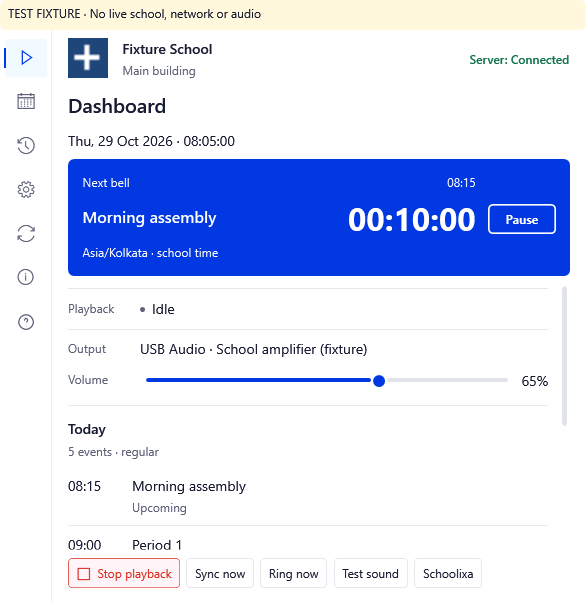
Plan online. Play at school.
Build your bell plan
Set times, school days, sounds and exceptions in Schoolixa. Review the effective schedule before publishing.
Connect the computer
Pair the Windows app with your school and audio zone. Choose the output and confirm a test can be heard.
Keep the day moving
Connect downloads the approved plan and audio, then plays locally while the computer and audio equipment are ready.
From the first assembly
to the final bell.
Regular weekdays, Saturdays, half-days and examinations each have their place. Holidays and date-specific exceptions keep the effective plan clear.
- Assembly
- Numbered periods
- Breaks & lunch
- Dismissal
- Exam milestones
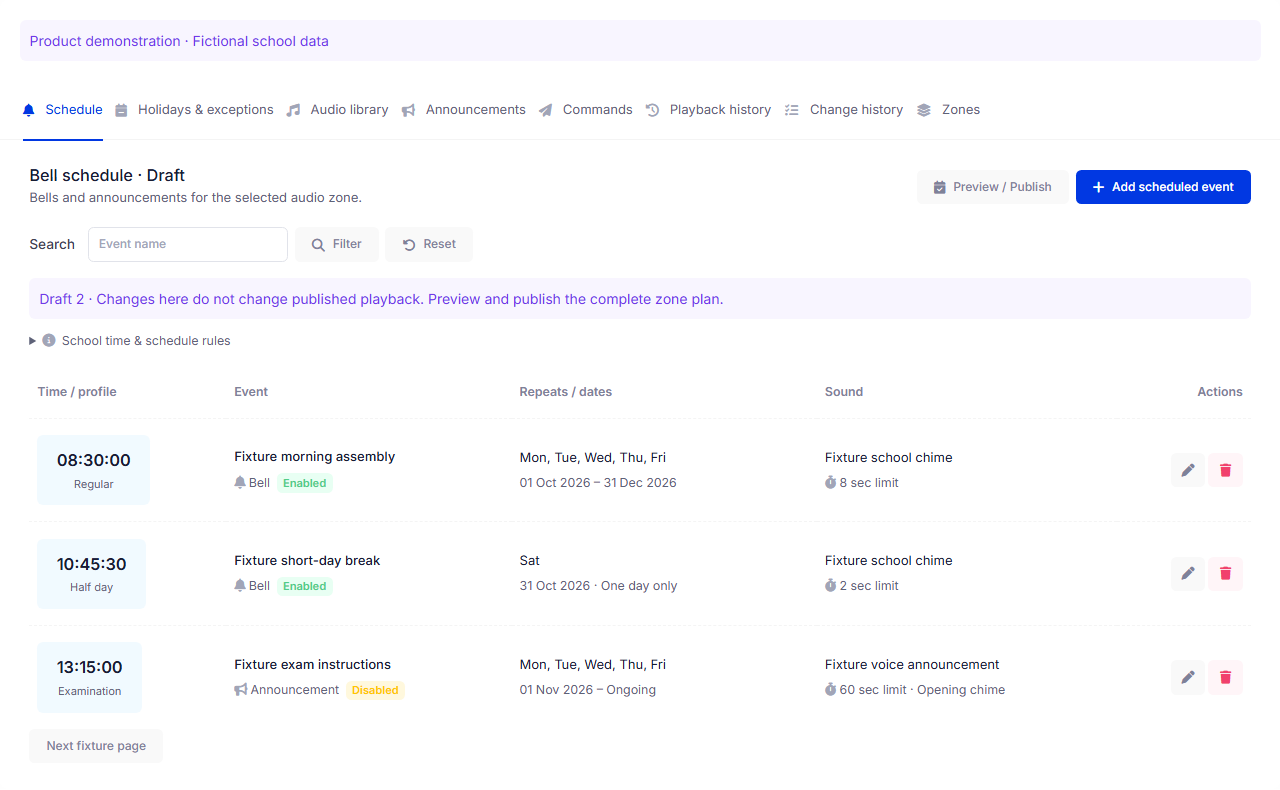
Exams have their own rhythm
Schedule reporting, reading time, the start, optional remaining-time reminders and the finish.
Exceptions stay explicit
Review the selected profile and the effect of holidays for a chosen date, in the school’s timezone.
See the day before it plays.
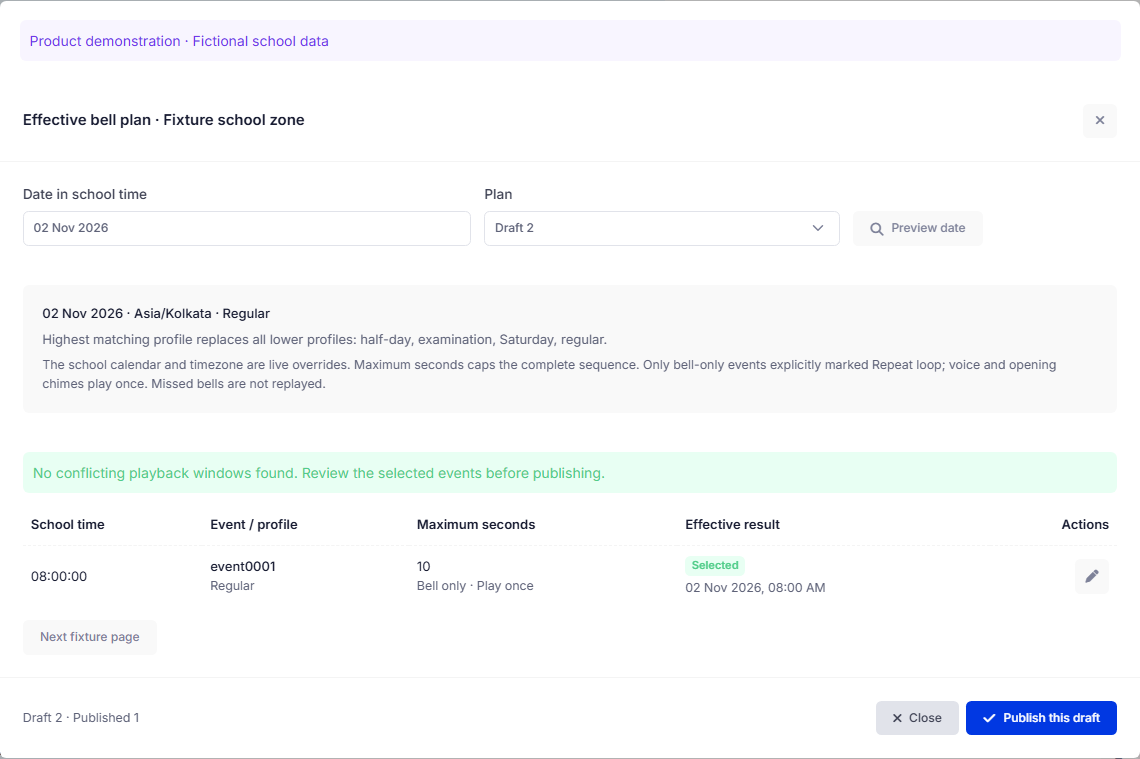
Editing a draft leaves the published plan in place. Preview a date, resolve conflicting times or playback windows, then publish when it is ready.
- See selected and excluded events.
- Review holiday and profile effects.
- Distinguish published from applied changes.
Connect applies an update only after its required audio is downloaded and validated.
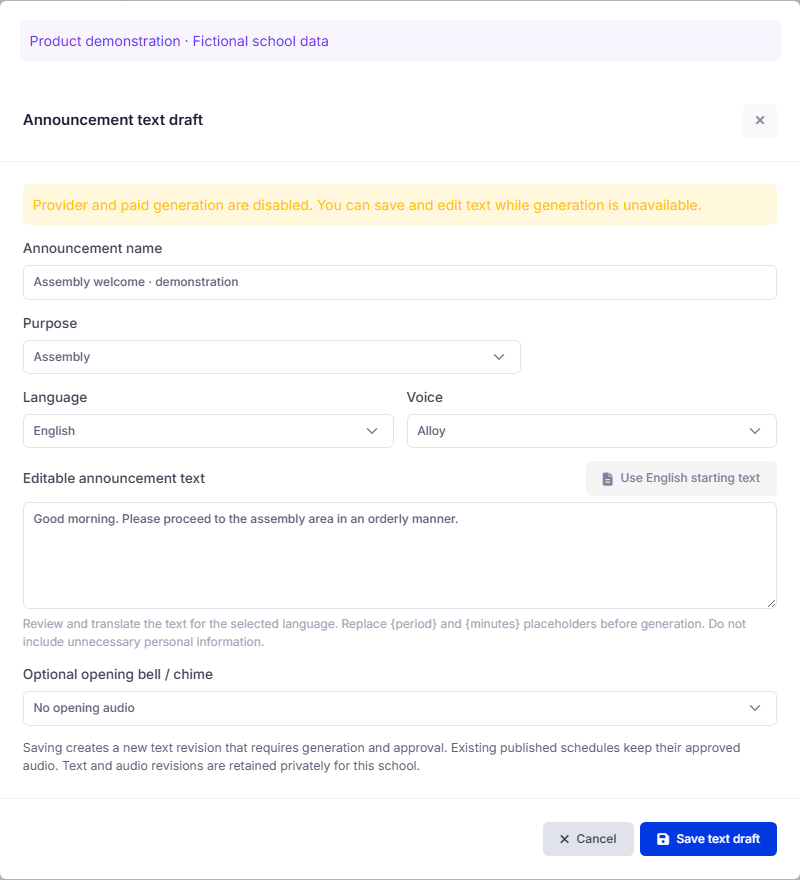
A bell. A message.
Or both, together.
Choose a bell sound, an approved voice recording, or a chime followed by an announcement. Schedule the message or send it immediately with the right permission and a connected player.
- Upload and preview your school’s audio.
- Prepare editable announcement text and an optional opening chime.
- Review and approve generated audio before it enters a published plan.
Text-to-voice requires a configured provider. Spoken announcements play once; bell-only audio can repeat within a configured duration limit. Connect plays cached audio, never generates speech at bell time.
The browser can close.
The bell plan stays.
Connect runs in the Windows tray. Keep the next bell, today’s schedule and local controls close at hand.
- Saved plan, available offline
- Downloaded schedules and audio continue while offline authorization remains valid. Failed updates preserve the last working plan.
- The output you chose
- Connect uses the selected audio device. A disconnected output is reported instead of sending school audio to another speaker.
- Clear local controls
- Pause today, resume a local pause or stop playback immediately. A server pause remains controlled through Schoolixa.
Keep the computer powered on, awake and signed in, with Connect running and the amplifier switched on.
Set up once. Check before the school day.
Download Connect from your Schoolixa account, then follow the Windows setup steps.
- Pair your schoolUse the code from Bell Player for your audio zone.
- Select the outputChoose the amplifier, USB audio or paired speaker.
- Confirm the soundRun the test and confirm it was heard at the speakers.
- Sync and get readyDownload and validate the plan and all required audio.
Separate zones require independent audio outputs or equipment. One active bell computer is assigned to each zone.
A few practical answers.
How Connect fits your school’s computers, speakers and day-to-day routines.
Does the Schoolixa website need to stay open?
No. Schoolixa manages the plan; the Windows app plays it locally. Closing the browser does not stop Connect. Closing the app window hides it in the system tray, while choosing Exit stops the player.
What happens if the internet disconnects?
The last successfully applied schedule and downloaded audio remain available while offline authorization is valid. Connect shows the expiry and reconnects to synchronize changes. It does not replay missed bells after a restart or wake-up.
Can we use our existing amplifier and speakers?
Connect plays through the Windows audio output selected during setup, including a wired amplifier connection, USB audio device or paired Bluetooth speaker. Confirm that the school speakers can be heard during setup. If that output disconnects, Connect reports the problem instead of silently switching speakers.
Can separate buildings have different bells?
Yes, with separate audio zones and one active bell computer per zone. Each zone needs an independently controllable audio output or separate equipment. Software cannot divide one amplifier output into independent zones.
Can staff pause or stop playback?
Authorized users can send controls from Schoolixa when the player is connected. Connect also provides local Pause, Resume and immediate Stop. Local Resume cannot override a school-wide pause set on the server.
Can we turn text into a voice announcement?
Schoolixa supports editable text drafts with language, voice and an optional opening chime. Generation requires a configured voice provider. Generated audio must be reviewed and approved before publication; Connect plays the downloaded audio and does not generate speech at bell time.
How do we install and update Connect?
Sign in to Schoolixa and open Communication → Download Schoolixa Connect. Download the Windows installer, then install manually during a bell-free interval using the same Windows account. For an upgrade, exit Connect first and preserve its pairing and app data. Downloading alone does not install an update.
Can we see whether a bell was heard?
Playback history records software results, not sound heard through the speakers. Optional, explicitly enabled monitoring can flag contact and software-readiness problems. It cannot verify amplifier power, speaker wiring or physical audibility.
Give your school day
a dependable rhythm.
Bring bell plans and announcements into your Schoolixa workflow.
Existing school? Communication → Download Schoolixa Connect.